Windows 11 CredSSP Encryption Oracle Remediation error
We will have to create a few Registry Keys to do that. Let’s check the steps.
Step 1: Open Registry Editor
First of all, open Registry Editor. In order to open Registry Editor, go to RUN, type regedit and press Enter.
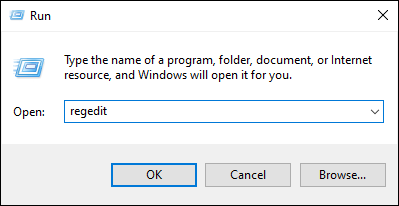
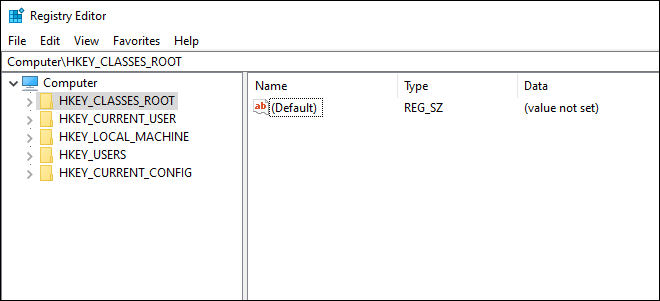
Registry Editor windows will open.
Step 2: Create the required CredSSP Keys in the Registry
Go to the following location in Registry Editor:
HKLM\Software\Microsoft\Windows\CurrentVersion\Policies\SystemHere, you have to create two Keys named CredSSP and Parameters under System. To do that, right-click on the System key and select New Key.
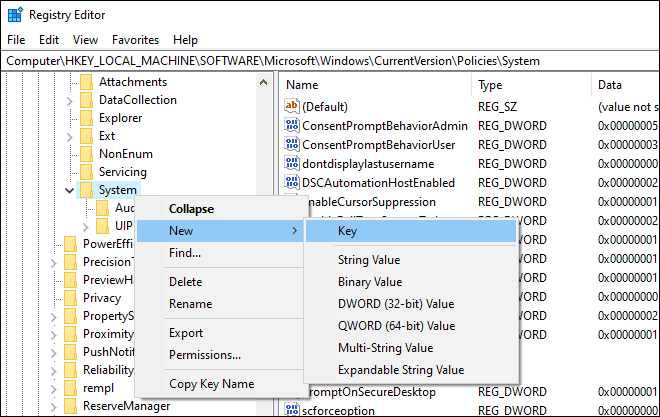
Name this new key as CredSSP as shown below.

Similarly, create a new key under CredSSP. Simply, right-click on the newly created CredSSP key and select New Key. Name this new key as Parameters.

Step 3: Create DWORD to Fix CredSSP Encryption Oracle Remediation Error
After creating the Parameters Key, select it. Now, right-click in the blank space on the right side and select New > DWORD (32-bit) Value.
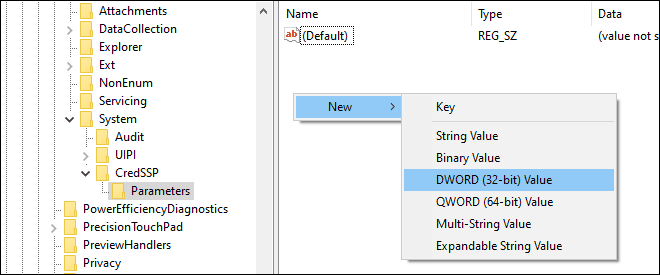
Name this new DWORD as AllowEncryptionOracle.
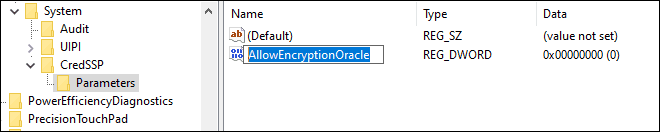
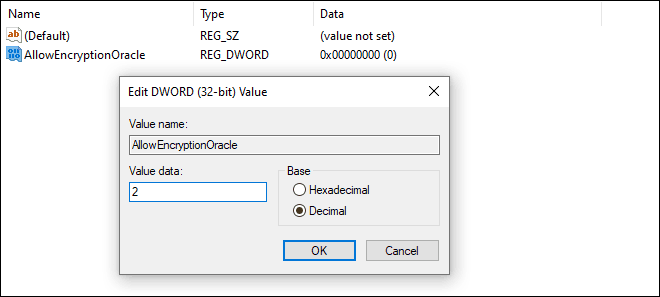
AllowEncryptionOracleNow Modify the value of this DWORD to 2 to fix the CredSSP encryption oracle remediation error.
It works on windows 10 also
ReplyDeleteVery interesting. It's work
ReplyDelete